
A canvas with four agents on it reads at a glance. With twenty it turns into a wall of cards that all look alike, and you lose track of which agents belong to which job, and which ones nobody has sorted yet.
You know the shape of your fleet because you built it. A new teammate who opens the canvas sees how many agents there are but not what they are for, and has to open them one at a time to find out. So do you, a few months and a dozen agents later.
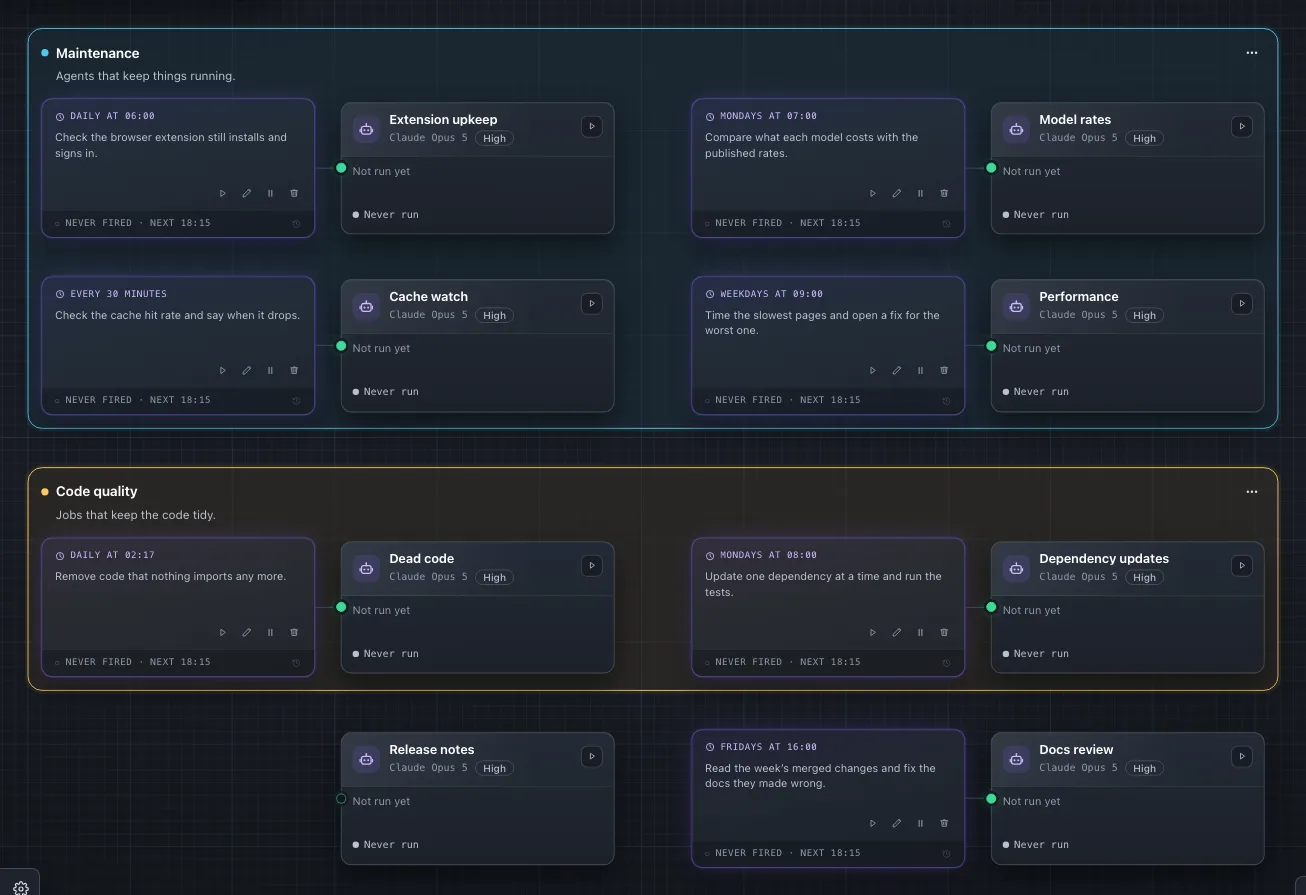
Reactor's canvas now has groups. A group is a coloured box with a name and a description, and it holds some of a workspace's agents in the order you choose. An agent is in one group or in none, and the agents in none stand under the boxes.
Make a group
Open the cog menu at the bottom left of the canvas and pick New group. An empty box appears with its name ready for typing. Type a name of 1 to 60 characters and press Enter, and the description opens next: up to 500 characters, saved with Enter too. A new group takes the first colour that no other group in the workspace has.
Each box has a menu at its top right. From it you rename the group, add or edit its description, pick one of six colours (violet, cyan, green, amber, orange or pink) or choose Ungroup, which removes the box and leaves its agents on the canvas under the boxes that remain.
Move agents in and out
Drag an agent's card into a box to add it, within a box to change its place, or out of the boxes to take it out of its group. With a mouse, a card lifts once you have moved it a little. On a touch screen, rest your finger on the card until it comes up; a swipe before then pans the canvas as usual.
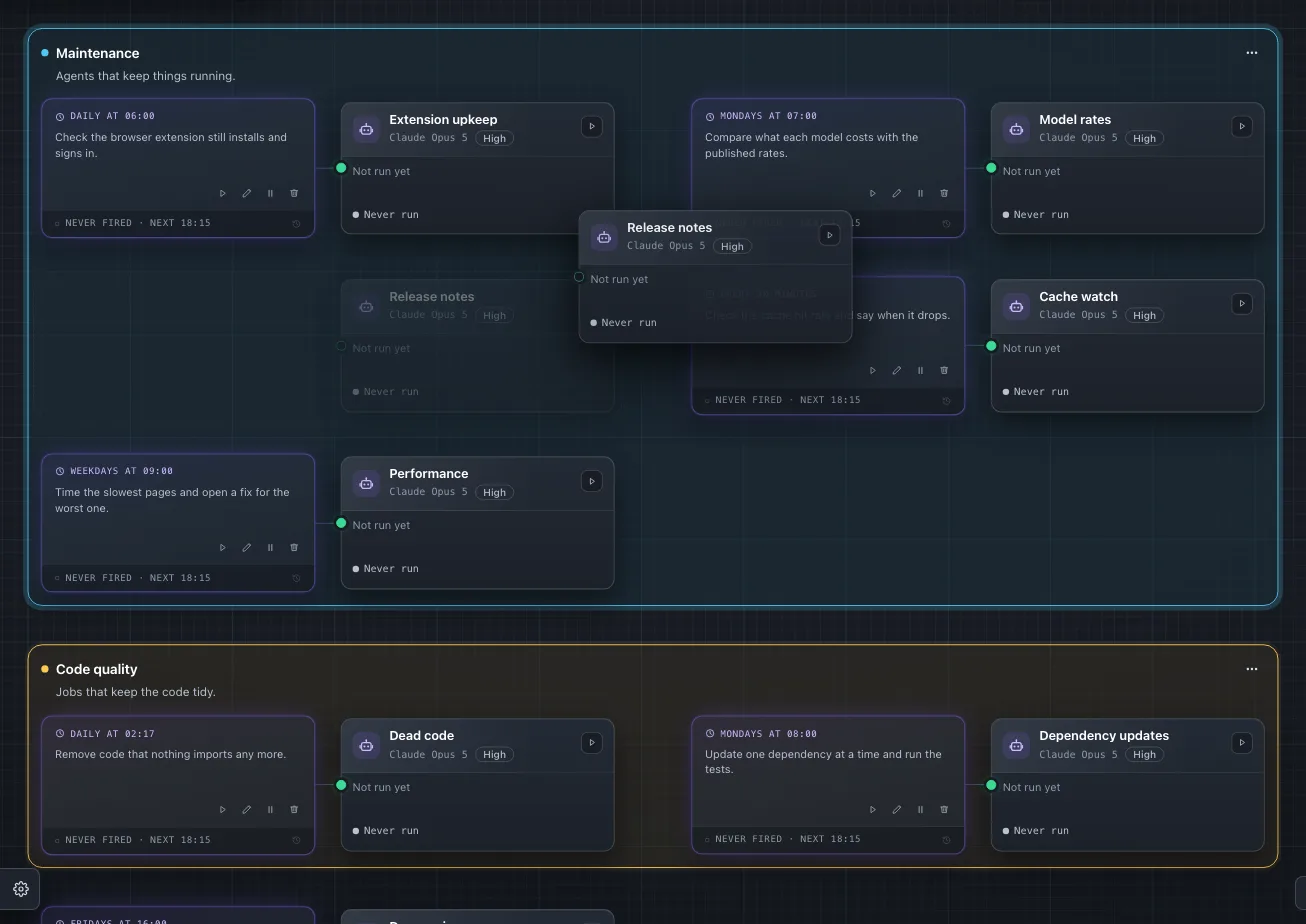
Escape puts a carried card back where it was. A tag filter turns dragging off and takes New group out of the menu, because the filter hides some of the agents.
Every change shows at once, before Reactor has saved it. If a save fails, the box goes back to how it was and one message tells you why.
A group remembers which agents it holds and in what order, never a place on the canvas, so the canvas still lays itself out and fits to your screen. Grouping changes nothing about how an agent runs. Owners and editors of a workspace change its groups; someone who can only read the workspace sees the boxes and can change none of them.
Ask Claude to sort them
Groups are in Selan MCP as well, so Claude Code can make and fill them for you. selan_remote_agents_canvas now lists each workspace's groups with their agents in order. Seven tools change them: selan_remote_group_create, selan_remote_group_rename, selan_remote_group_describe, selan_remote_group_recolour and selan_remote_group_delete for the boxes, and selan_remote_group_place and selan_remote_group_release for the agents. Placing an agent puts it at a position in the group and takes it out of any other.
So you can ask for the result instead of dragging your way to it:
Make a Maintenance group and put the agents that look after upkeep in it.That is how we sorted our own canvas. The docs cover what each tool takes and who may call it.