 selan.ai
Docs
Run Claude Code, Codex and Claude Desktop on company accounts
One command to install, one to sign in, and Claude Code, Codex and Claude Desktop run exactly as they always did, against your company's accounts instead of your own.
All docs
Start here
- StatuslineWhat each meter on the Claude Code statusline means
- Models & providersWhich models run on which of your accounts
- Google VertexClaude on your own Google Cloud project
Apps
- Claude DesktopRun the desktop app on your company's account
- Import your dataBring your claude.ai chats and projects over
- CodexRun OpenAI Codex with one command
Tools (MCP)
- MCP connectionsEvery tool Selan can connect Claude to
- Browser ExtensionLet agents use tabs in your own Chrome
- Selan MCPYour Selan data and remote agents over MCP
Agents
- Agents in CIRun an agent in GitHub Actions or GitLab CI
- Code reviewAn agent that reviews every pull request
- Minimise commentsAn agent that deletes comments that restate the code
- RunnersRun remote agents on machines your company keeps on
Build
- APICall Selan from your own code
- Claude Agent SDKThe Claude Agent SDK on your company's accounts
- Codex SDKThe Codex SDK on your company's accounts
- VoiceText to speech on the same key
Security & cost
- Hiding secretsHow credentials are removed before the model sees them
- PracticesWhat your Claude Code sessions cost, and what to change
Reference
- ReferenceEvery command, environment variable and error message
Get started
Sign in
Google or Microsoft. A revocable session token is all that lands on your machine.
How do I get a Selan account?
If a colleague has already set your company up, ask them to invite you. Joining an existing workspace is by invitation unless an owner has switched that off. There is one alternative, off until somebody turns it on: an owner can let anyone signing in from a verified company domain join without an invitation. Somebody who joins that way lands as a read member, and a read member can still sign in on the CLI and spend against your limits, which is why the switch says so beside itself.
If nobody has yet, create the workspace yourself at auth.selan.ai/r. Sign in with Google or Microsoft; there is no invite code and no allowlist. Selan names the workspace after your domain and you can change that on the next screen.
Whoever creates it is its owner: the role that connects provider keys, switches models on, mints API tokens and sets spend limits.
If someone at your domain got there first, you will be told so and shown who to ask. Selan will not drop you into a second workspace beside theirs.
How do I install Selan?
macOS and Linux, Intel or ARM:
curl -fsSL https://dl.selan.ai/install.sh | shWindows, in PowerShell:
irm https://dl.selan.ai/install.ps1 | iex
It installs a single binary called selan, plus a second name,
seland, that skips permission prompts. On macOS
and Linux it lands in /usr/local/bin; on Windows in
%LOCALAPPDATA%\Programs\selan. Set SELAN_INSTALL_DIR to put
it somewhere else. If that directory is not on your PATH, the installer
adds it, and prints the one-liner that fixes the shell you are already in, since the
change only reaches shells started afterwards.
Claude Code is a prerequisite. Selan launches it; it does not bundle it:
curl -fsSL https://claude.ai/install.sh | bashEither order works. Inside WSL, use the Linux installer. A WSL session is Linux, and it needs Claude Code installed inside WSL too.
How do I sign in?
selan loginOpens your browser for Google or Microsoft sign-in. Over SSH, where there is no browser to open, it prints a URL to paste instead. What lands on your machine afterwards is a revocable Selan session token and nothing else: no Anthropic key, no OAuth account.
selan whoami tells you who you are signed in as and which company;
selan logout revokes the session and forgets it.
How do I run Claude Code through Selan?
selan claudeEvery argument passes straight through, so anything you already type still works:
selan claude -p "explain this repo"
selan claude --resume
selan claude --permission-mode plan
Codex is the same shape under its own name, and passes its arguments through the same way. It has a page of its own: Codex.
selan codex
You do not need to login first. Either command signs you in when you have
no session.
selan claude
warns and launches anyway on your cached session. Only a genuine rejection makes you
sign in again.
Claude Desktop
How do I use Claude Desktop through Selan?
Claude Desktop runs on your company's account too, and setting it up is one settings file: download it, import it in Desktop, relaunch, sign in. The full walkthrough (seven steps, with a picture of every menu and button) is at Claude Desktop. In Selan control, the Claude Desktop item in the sidebar opens the same page.
What you get, and what you still do yourself
- Connectors appear on their own. Whatever an owner has switched on under Connections reaches Desktop the next time you start it. There is nothing to paste per connector.
- You sign in to each one yourself the first time you use it. See Connections.
- Your sign-in is your credential. Desktop holds a session token from the browser sign-in, the same kind the CLI uses, so it spends against your own limit, shows up as you in Usage, and ends when your session does.
- Nothing in the file is a secret. It names a URL and asks Desktop to sign in before reading it; the gateway and the key arrive from that URL at every launch. A file you export from Desktop is a different matter: that one carries a live key, so never pass one around.
- Needs Claude Desktop 1.25927 or newer. The floor is set by
Trust bootstrap-delivered settings; the OIDC block itself arrived earlier, in 1.10628, but the flow stops at the strip without the toggle.
Codex
How do I use Codex through Selan?
Codex runs on your company's accounts too, and the change is one word:
selan codex instead of codex. Every argument passes through, and
Codex itself is a prerequisite — Selan launches it, it does not bundle it. The full
page is at Codex.
What is the same, and what is not
- The same session and the same limits. One sign-in serves every client. Your Codex requests spend against the same budget, appear as you in Usage, and reach Logs with the model that served them.
- Your config gets one managed block.
selan codexwrites[model_providers.selan]into~/.codex/config.toml, between markers, and says so once. The rest of the file is left alone. See your config file. - The picker needs Codex 0.156 or later. Older versions show your company's models under
/modelonly while signed in to ChatGPT; otherwise you name a model instead. See models in the picker. - Not every model can reach it. Codex speaks one protocol, so some models that work in Claude Code never appear here — nexos.ai's Claude models among them. See which models can appear.
- No statusline and no context limit. Both are Claude Code's. What differs lists the three.
Everyday use
Which model does Claude Code run on?
By default Claude Code runs on your company's Anthropic accounts, and you pick models
exactly as usual, with /model or --model opus.
Anything else is reachable two ways: your company can put models into the picker for everyone, or you can name one on the command line.
Which models are in Claude Code's /model picker?
Type /model in Claude Code and the list is your company's: every model an
owner has switched on and put in Claude Code's picker, Claude models first, and nothing
else. Pick one the way you pick
Opus, with no flag to pass.
| > | 1. | Claude Opus 5 ✓ | 1M context, on your company's own provider key through Selan |
| 2. | Claude Sonnet 5 | 1M context, on your company's own provider key through Selan | |
| 3. | MoonshotAI: Kimi K3 | 256k context, on your company's own provider key through Selan | |
| 4. | OpenAI: GPT-5.6 Sol | 400k context, on your company's own provider key through Selan |
Your pick becomes the default for new sessions, and you can change it mid-session as
often as you like. Each model starts at its own default effort; a
level you pick in /model is yours and outlasts every later launch.
/model does not change that figure, so a long session on a 256k model can
outgrow what its provider accepts. When a mid-size window matters, name the model with
--model instead. That path compacts at the
model's exact window.
If a model you expected is not there
- Quit and relaunch first. The list is read at startup, so a model switched on while you were working shows up the next time you start Claude Code, not when you reopen
/model. - Then ask an owner to switch it on. A model has to be switched on in Settings → Models and be in the Claude Code picker in Settings → Model pickers. A Claude model goes into the picker when it is first switched on; an owner adds any other model there by hand. Only a Claude or ChatGPT subscription brings models that start switched on. Connecting a provider key does not put anything in anyone's picker by itself.
- A model that disappears was switched off. If you had it selected, you will get
model_not_allowed. Pick another and relaunch.
Want a model your company has not curated? Any model your provider serves can be named directly. See Run any model.
Can Claude Code run GPT, DeepSeek or Kimi?
Claude Code drives GPT, DeepSeek, Kimi and the rest. If your company has connected its own OpenRouter, nexos.ai, Ollama or ChatGPT account, name a provider and one of that provider's models. Providers and models is the full list:
selan claude --model openrouter:openai/gpt-6.1-sol
selan claude --model openrouter:deepseek/deepseek-v4.1-flash
selan claude --model openrouter:moonshotai/kimi-k3
The part before the first colon is the provider; everything after it is that
provider's own model id, passed through as-is, so any model they serve works without
anything being added to Selan first. The exception is a model Selan lists: an owner
switches it on at that provider before it can be pinned there. Capitals, dashes, dots and spaces do not change
which model you get, so nexos:claude-sonnet-4-6 and
nexos:"Claude Sonnet 4.6" are the same model.
The model appears in Claude Code's /model picker for the session, so you
can switch back to it after changing models mid-session. A --model with
no colon is Claude Code's own flag and is passed through untouched.
Which one to reach for
- Use the picker when you can. If a model is already in
/model, pick it there: it survives a restart and you can switch mid-session. - Use
--modelfor a one-off, for a model nobody has curated, or whenever the exact context window matters. It pins the whole session, so start a new one to change your mind. - Quote ids with spaces. Some nexos ids have them, as in
nexos:"Claude Sonnet 4.6".
The statusline
Selan adds a line to the bottom of Claude Code with your company's 5-hour and 7-day
rate-limit headroom and your own spend against your own budget. What each meter means,
how to turn it off, and selan usage for the same numbers are in
the statusline docs.
What happens when I reach a spend limit?
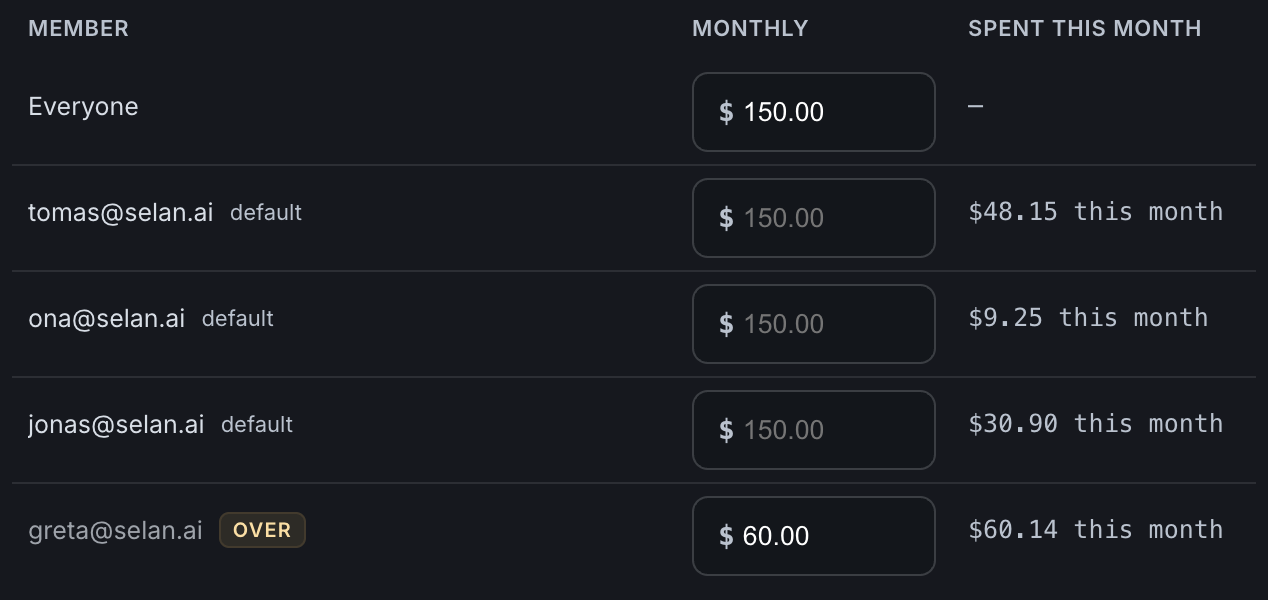
Two kinds of limit can stop you. A key's limit caps everything spent through one of your company's keys, by anyone. Your own limit is set once and applies across every key in the company. It follows you, and does not start again on each key.
Both run on calendar periods in UTC (a day, a week or a month) and both bind the moment they are reached, not once they are passed. The refusal names which limit it was and when it resumes; if two are over at once, you are told the later of the two. Nothing you retry clears it sooner.
Spend is attributed to you personally, so one person running hot does not consume someone else's allowance. Your own budget is the bar on the statusline. Watch it, and do not wait for the refusal.
Your own limit stops only what is billed per token: your company's subscription seats keep serving you after you reach it.
A spend limit is Selan's. The 5-hour and weekly windows of a Claude plan are Anthropic's, and Claude Code rate limits explains when each resets.
Going further
How do I run Claude Code without permission prompts?
Normally Claude Code stops and asks before it edits a file or runs a command, so it cannot finish a job while you are away from the terminal.
seland is the same binary under a second name, installed beside
selan. Running it is selan claude
--dangerously-skip-permissions. Claude Code works to the end without asking
you anything.
seland claude … and seland … are the same launch.
claude and codex are the two command words, and
run is read here as it is under selan, so
seland run is a declared launch
without the prompts. With none of them, it launches Claude Code. A prompt cannot
begin with one of those words, which is the price of their being commands. Typed out of habit the word is dropped, not passed on as your prompt. The
examples below spell it out to match the rest of this page; leave it off if you prefer.
Hand it one job
The most common use. Give it a task, walk away, read the diff when it is done:
cd ~/work/api
seland claude -p "the auth middleware tests are failing. Find out why and fix it."
Everything after seland other than those three words is Claude Code's,
so anything you already pass still works: -p for a one-shot task, --resume to pick a
session back up, --output-format to get JSON back out.
Or a whole session
selandA normal interactive session with the prompts turned off. It first prints the directory it is about to work in and waits for one enter (the only confirmation you get, and the only one you need, because the flag then holds for the rest of the session in that directory).
Overnight, or in CI
Add an API token and nothing interactive is left: no browser, no prompts, no enter to press. In GitHub Actions:
- run: curl -fsSL https://claude.ai/install.sh | bash
- run: curl -fsSL https://dl.selan.ai/install.sh | sh
- run: seland claude -p "update every dependency with a patch release, run the tests, open a PR"
  env:
SELAN_TOKEN: ${{ secrets.SELAN_TOKEN }}seland therefore runs with
no confirmations, whatever access the job has, and whatever the runner checked out.
Plan it first
Plan mode is the opposite setting: Claude Code reads the code, works out an approach and tells you, changing nothing:
selan claude --permission-mode plan
Agree the plan there, then hand the work over to seland to carry out, so
you review the approach before anything is written, not the diff afterwards.
Use selan for this one, not seland. seland
always skips permissions, which is the opposite of what this flag asks for.
Where to run it
With the prompts off, nothing stops a bad edit as it happens, so what limits the damage is how much the session can reach:
- Commit or stash first. A clean tree means
git diffis the complete record of what it did, andgit checkout .is the whole undo. - Start it in the directory you mean. It works from where the terminal was sitting, and it will not ask again.
- Give a long job its own worktree with
git worktree add ../job my-branch, so it cannot touch what you are editing. - In CI, scope the token the way you would any other: a runner with no production credentials cannot reach production, whatever it is asked to do.
claude, codex and run are the only subcommands under the
second name; every other argument belongs to the agent. seland whoami,
seland login and the rest are refused, and point you at selan.
How do I run Claude Code in CI, containers or cron?
selan login needs a browser, which an unattended job does not have. For
those, an owner mints an API token under Settings → API tokens, and the job carries it
in the environment:
export SELAN_TOKEN=selanct_...
selan claude -p "review this diff"
With it set there is no sign-in, no browser, and nothing written to disk, so it is safe to hand to a container without baking a credential into the image.
An API token spends as itself, under an address of its own like
ci-nightly@tokens.selan.ai. Use one in place of a person's login for
exactly this reason: the nightly job's bill shows up as the nightly job in Usage and in
Logs, instead of on whoever set it up. Give each job its own token and
name it after the job.
Check which one a shell is using with selan whoami. It prints only the
last four characters, so it is safe to leave in a CI log.
SELAN_TOKEN is set in your own shell, your own selan claude
spends as the token, not as you, so a job started on a laptop bills the job and not
the laptop's owner. A stray export is easy to miss, and selan whoami is
the only place it surfaces.
How does selan stay up to date?
selan updateUpdates in place, next to the binary you are actually running.
You rarely need to run it. selan claude checks once a day, and when there
is a newer release it installs it before handing over the terminal.
If an update fails, you get a warning and Claude Code starts anyway. On a build
machine where you want the version pinned, set SELAN_NO_AUTO_UPDATE
(whatever value you give it) and update deliberately instead.
For admins
What does an owner set?
Everything below happens in the Selan control app at control.selan.ai, not on the command line. How it works walks through the screens.
| Setting | What it does |
|---|---|
| Accounts and provider keys | Add the Anthropic accounts Selan leases from, and connect your own OpenRouter, nexos.ai, Ollama, Google Vertex or ChatGPT account. The full list is in Providers and models. Credentials are verified with the provider when added, encrypted before they are stored, and never rendered back, not even to whoever added them. |
| Settings → Models | One switch per model at each provider your company has connected. On lets developers use it; off makes it unreachable, even named with --model. Off by default for every provider but a Claude or ChatGPT subscription: connecting a key alone changes nobody's picker. A subscription's own current models start on, and an owner can switch them off. |
| Settings → Model pickers | One tab per client (Claude Code, Claude Desktop and Codex), listing the models that are on in Models. A model in a tab's list is in that client's model menu. A model switched on for the first time joins its own family's list: Claude models in Claude Code and Claude Desktop, GPT models in Codex. Add any other model by hand. An empty Codex list leaves Codex on its own built-in models. |
| Connections | One switch per connector: Jira & Confluence, Sentry, Linear, Notion, GitHub and the rest of the catalog Selan curates, all listed in MCP connections. On offers it to every developer alongside the model; off takes it away. Off by default. Each developer signs in to a connector as themselves the first time they use it, so their own permissions apply and Selan never holds their account. For the same reason, the page shows you what is offered and never who has signed in. A few connectors cannot register a client automatically and need an OAuth client you create; the page says which, and asks for it there. Browser Extension also needs the extension installed in each developer's Chrome. |
| Settings → API tokens | Mint a token for CI. Owner-only, capped at 50 live, expiring in 1, 30, 90 or 365 days, or never. Shown once. Revoked from the same panel. The tokens Reactor mints for its remote-agent runs do not count toward the 50. |
| Spend limits | Per key, and per person on a key, for a day, a week or a month. |
| Secret scanning | Off by default. With it on, every request body is swept with gitleaks' rules and each match is replaced before a byte goes upstream. It redacts and forwards, never blocking over a secret; it refuses a request only when the scanner cannot be reached, so nothing goes upstream unscanned. Developers see nothing; owners get a Secrets feed in Logs. See Hiding secrets. |
| Commit attribution | Turn off Claude Code's co-author line and session-URL trailer in commit messages, company-wide. |
| Repository attribution | Lets usage be attributed to the repo it ran in, which is what Insights reads. Supported clients may supply a host-qualified repository slug consistently; Selan records it only after an owner turns this on. Off by default. |
--settings opts out of the settings half.
Your flag wins, and Selan does not merge into it, so that launch gets no statusline and
none of your company's settings, including attribution coming back on for a company
that turned it off. It does not opt you out of the connectors: your company's MCP
servers are still passed in, and still added to and removed from
~/.claude.json as the company switches them on and off. To own that half
too, pass --mcp-config as well. With both, the CLI says so on launch.