 selan.ai
Docs · Claude Desktop
Import your claude.ai chats into Claude Desktop
Desktop keeps your conversations on this machine, so your claude.ai history does not come with you. Three steps: an extension makes a file, Desktop imports it, and one command handles the scheduled tasks. Set Desktop up first at Set up Claude Desktop.
Why do I need an extension?
Try Desktop's own Sign in to claude.ai button first. If your admin has turned on data export, it works and you can skip this page.
Most Team plans do not have that setting, so the button fails. Claude AI Export makes the same file from your own account instead. It runs in your browser and saves to Downloads. Because it can only talk to claude.ai, your conversations stay on your machine.
Add Claude AI Export to Chrome
Open source, no runtime dependencies, reproducible from source: the code is on GitHub.
How do I export my claude.ai data?
Click the extension's icon. It opens claude.ai for you and waits if you need to sign in.
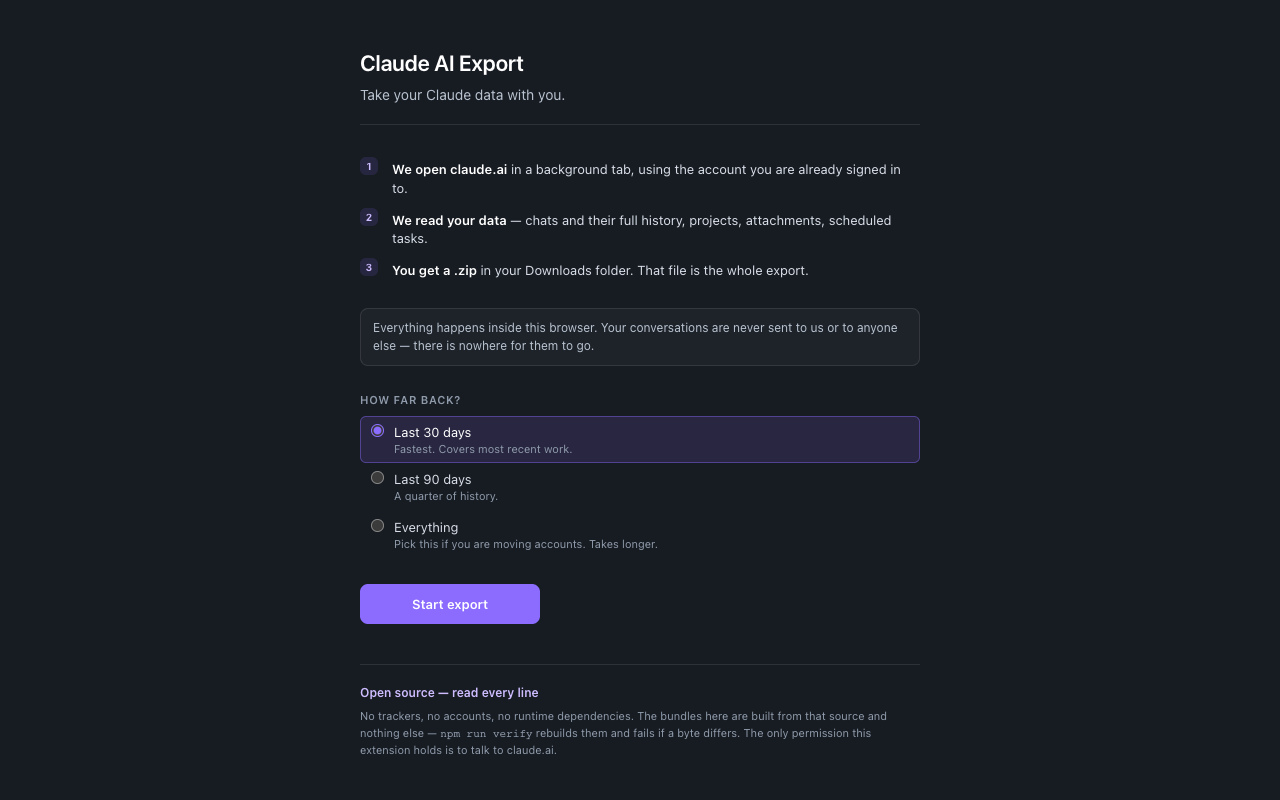
Choose “Everything” if you are moving accounts. The default is the last 30 days. If your history is older than that, you get a file that looks fine but is nearly empty: 600 KB instead of 25 MB. The page tells you how many of your chats it found. Check that number before you import.
A big history takes a few minutes. You can close the tab; it keeps running.
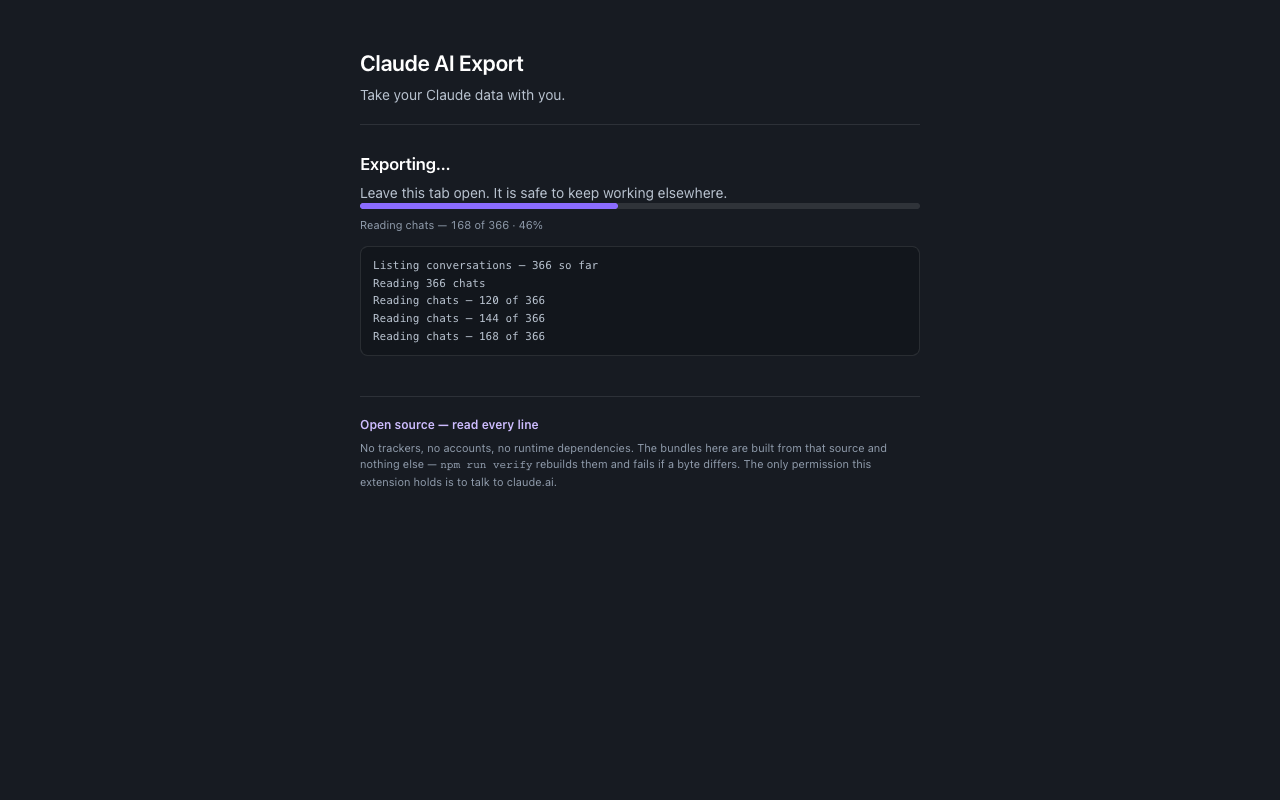
When it finishes, claude-export.zip is in your Downloads folder.
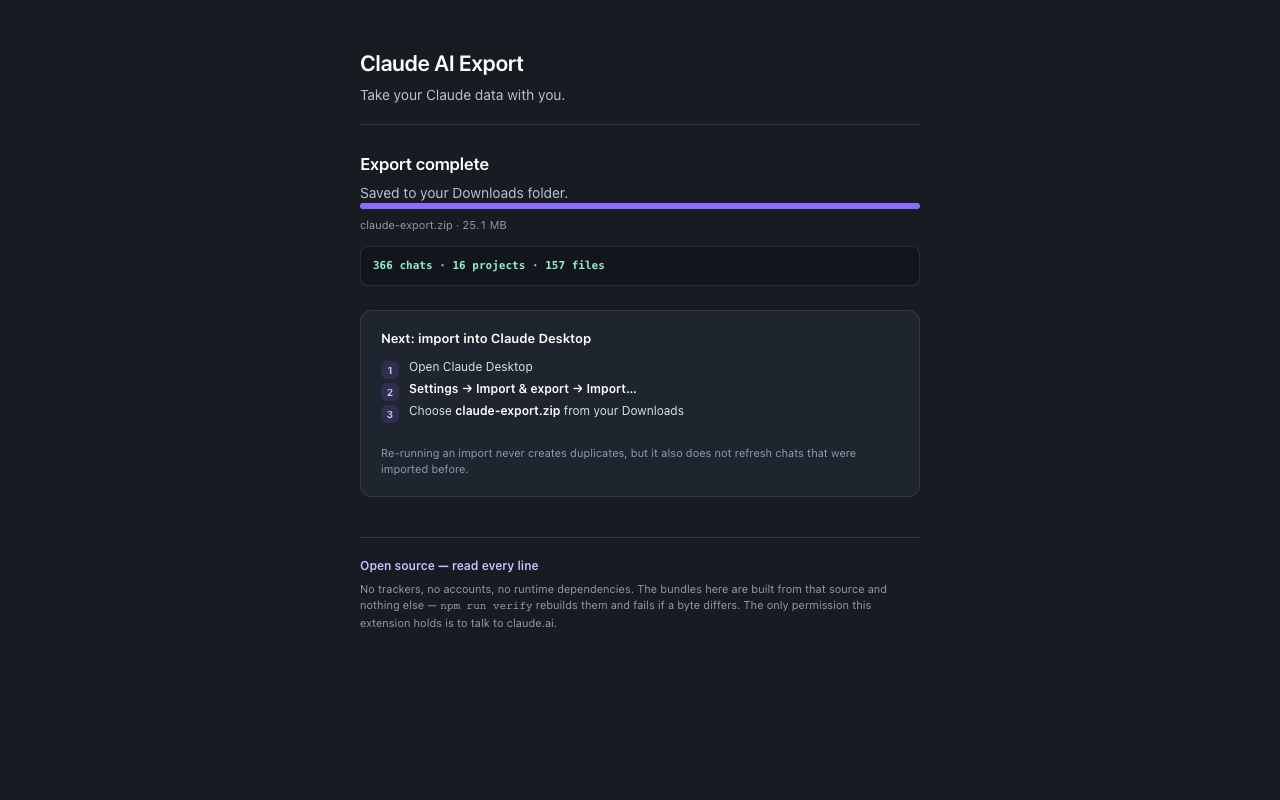
How do I import the archive into Desktop?
This part is Desktop's own importer. Open Settings → Import & export.
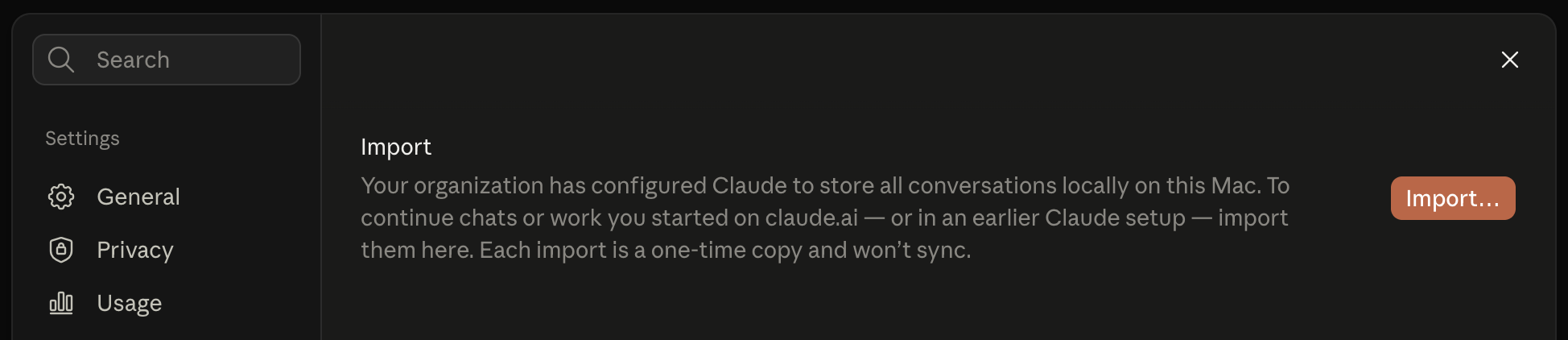
Press Import… and work through the three steps.
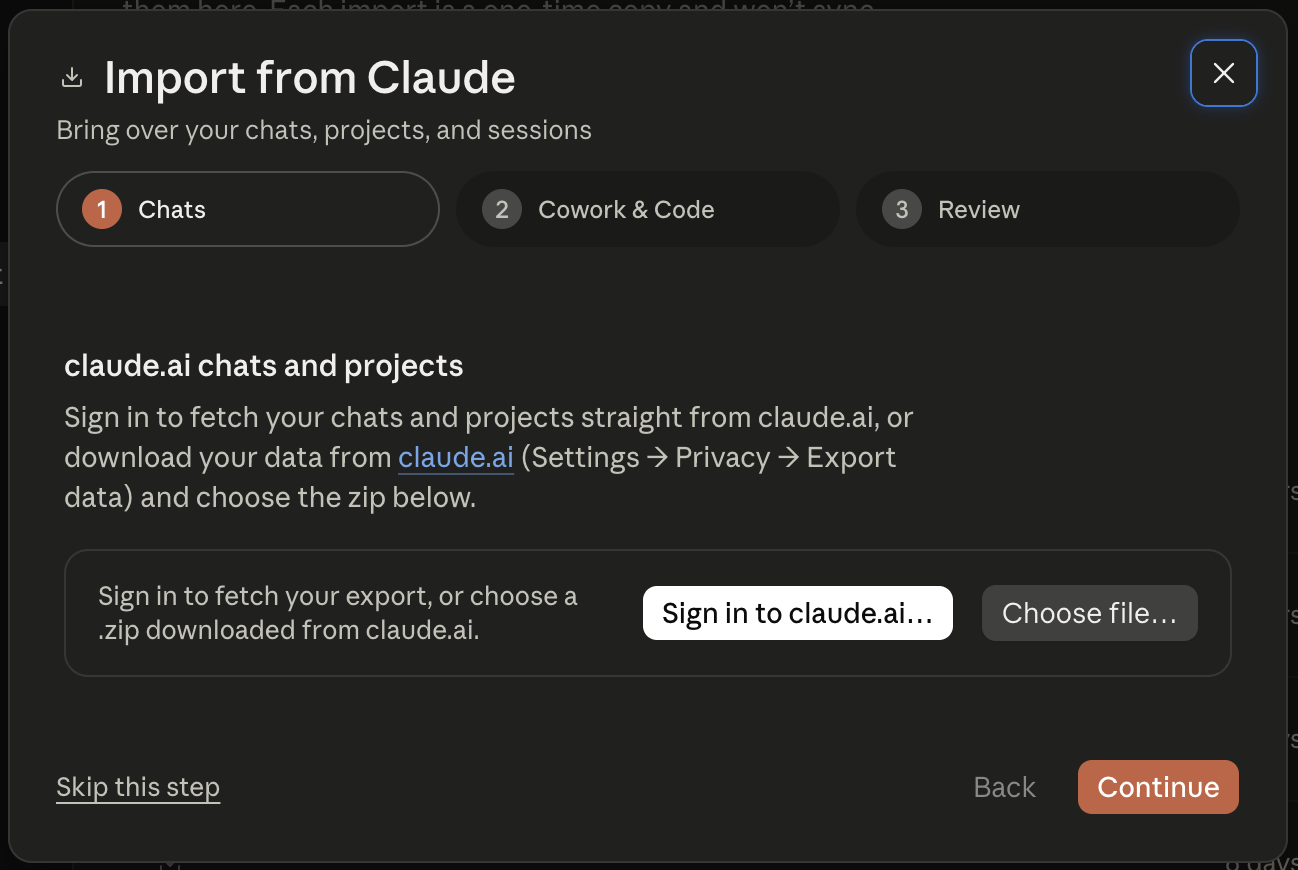
1. Chats. Press Choose file… and pick your
claude-export.zip.
2. Cowork & Code. Skip this unless you had an earlier Claude app on this machine.
3. Review. It shows a count. Check it matches the export, then press Import.
Your chats appear in the sidebar and projects become Spaces. The first time you write in an imported chat it asks Resume imported session? Say Trust and resume. It asks once per chat.
Importing twice is safe, but it will not update anything. You never get duplicates, and you never get a fresher copy of a chat that is already there: those are skipped. Run it again and you pick up new chats only. To replace a bad import, delete it first.
How do I bring scheduled tasks across?
Your scheduled tasks are in the file, but the importer ignores them. It only reads chats, projects and attachments. This is not something the export can fix.
Desktop keeps its tasks as files on your Mac, so one command writes them:
curl -fsSL https://raw.githubusercontent.com/selan-ai/claude-ai-export/main/scripts/import.sh | bashIt finds your newest export, writes the tasks, then opens Claude Desktop with the file already selected. You do not need to install anything. It backs up anything it changes and prints the command to undo it.
Afterwards the tasks are under Scheduled in the sidebar.
Times are stored differently. claude.ai keeps task times in UTC; Desktop runs them in your local time. A task set for 08:00 in Vilnius is stored as 05:00, so copying it over unchanged would wake you at five. The script converts each one and prints what it changed.
What comes across?
| What | Where it lands |
|---|---|
| Chats | The sidebar, with their full history, including branches from edited or regenerated messages. |
| Projects | Spaces, with their instructions and documents. |
| Chat ↔ project | Kept. A chat that was in a project lands in the matching Space. |
| Attachments | Restored with the message they belonged to. |
| Scheduled tasks | Written by the command in step 3. |
| Memory | Does not come across: claude.ai cannot export it. |
What if the import did not work?
No Import & export in Settings. Desktop is signed in to claude.ai instead of your company's gateway. Start at Set up Claude Desktop.
Far fewer chats than expected. Check the date range you picked. Choose “Everything” and export again.
Attachments are missing. Open skipped.json inside the
file. Anything that could not be downloaded is listed there, with the reason.
The importer shows zero. The problem is the export, not Desktop. Export again and check the counts before importing.
A task runs at the wrong time. See the note above. The script prints every time it converts, so its output shows what it set.