 selan.ai
Docs · Browser Extension
Let Claude Code use tabs in your own Chrome
The Browser Extension lets Claude Code, Claude Desktop and Selan's remote agents open and use tabs in your own Chrome, where you are already signed in. They can only touch tabs the extension opened in its own tab group, and only on sites you have allowed.
How do I install the extension?
Add the Browser Extension to Chrome
The Chrome Web Store lists it as Selan MCP Extension.
You need Chrome 126 or later, and the extension does not run in incognito windows. It has no account and nothing to sign in to. It is linked to Selan when you connect an MCP client to it, as described below.
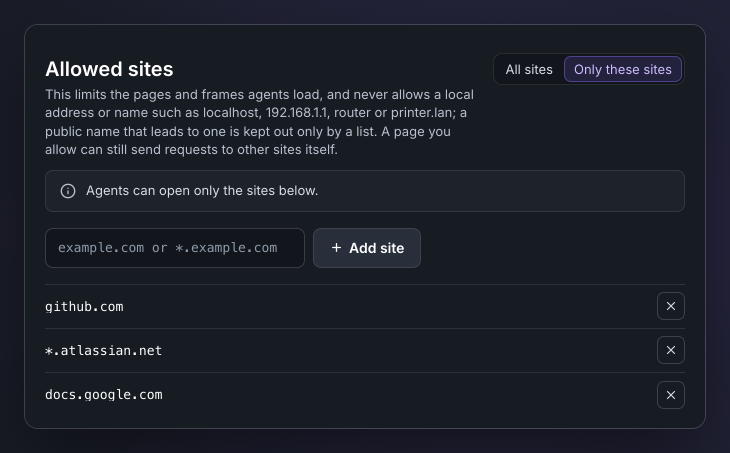
A new install allows no sites. Open the extension's Settings and add the sites agents may use under Allowed sites, or choose All sites. If an agent tries any other site, the extension refuses and tells the agent to ask you to add it.
How do I connect it?
Claude Code and Claude Desktop through Selan. An owner switches on Browser Extension under Connections in Selan. Each developer then turns it on for Claude Desktop, the CLI or both on their own Connections page, and it shows up the next time they start that app.
Any other MCP client adds the server by its URL:
https://mcp.selan.ai/extension/mcpThe first time a client uses the server, it opens a connect page in your browser. Connecting on that page is what links the browser: the first client registers this Chrome, and later clients are added to it. A client's commands only go to the browser it connected. When Claude Code on this machine opens the page, it connects straight away. Any other application is named on the page, and nothing connects until you press Connect.
Reactor remote agents connect the same way. selan_remote_agent_connector_connect
with the slug extension returns a link; open it in the Chrome you want the
agent to use. See Selan MCP.
Not installed yet? The connect page tells you and links to the Chrome Web Store. Install the extension, then press Retry on the same page. Open the page in Chrome, because other browsers cannot run the extension.
Which tabs and sites can it touch?
- Only in tabs the extension opened itself, in one tab group named Selan. It never reads or touches your own tabs, and a tab you drag into the group stays out of reach.
- Only on sites you allow. The extension blocks pages, frames and embedded objects from any other site before they load.
- Never on a local address or name, whatever the settings say:
localhost, private and link-local addresses, single-label names such asrouter, and.local,.internal,.lanand.home.arpanames. - Never on
chrome://pages, other extensions' pages, files on disk ordata:pages. - It never reads password fields, the other fields in a form that has one, or fields marked as secret, such as one-time codes and card numbers.
Which tools does it offer?
Eight tools. Destructive marks a tool that can change something outside the tab: a click can submit a form or confirm a purchase.
| Tool | What it does | Destructive |
|---|---|---|
browser_open | Open a URL in a new tab in the Selan group | |
browser_list | The tabs the extension opened, each with its id, title and URL | |
browser_navigate | Send an open tab to another URL | |
browser_read | A tab's title, URL, headings and visible text, and the links and controls in it | |
browser_scroll | Scroll a tab up or down a screen, or to its top or bottom | |
browser_click | Click a link or control, as you would | Yes |
browser_type | Type into a field, and press Enter afterwards if asked | Yes |
browser_close | Close a tab the extension opened | Yes |
How do I stop it?
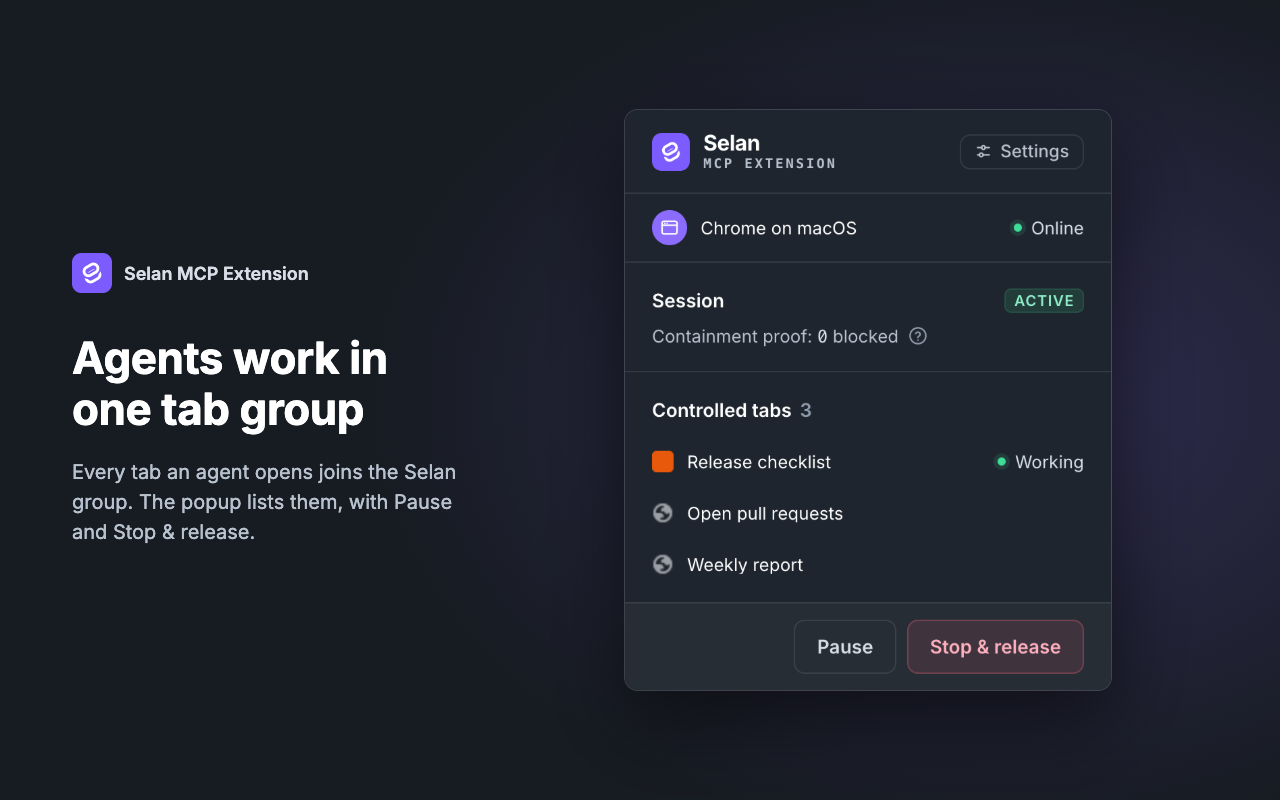
The popup shows the tabs the extension controls and how many loads it has blocked. Pause refuses every command until you resume, and agents are told to ask you to. Stop & release closes the agent's tabs and any pop-up windows their pages opened.
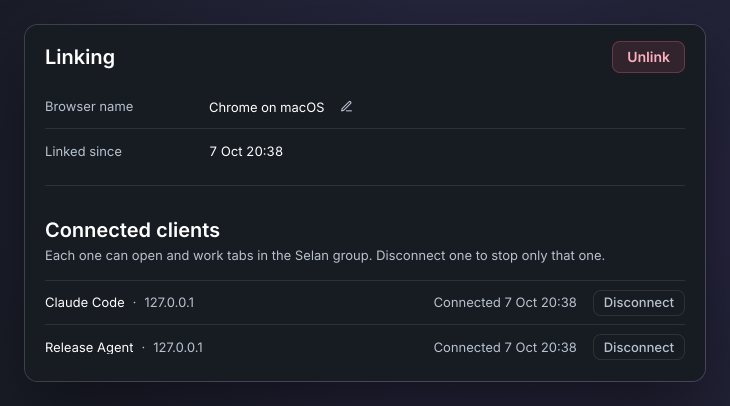
In Settings, each connected client has its own Disconnect button. Unlink revokes this browser and every client on it at once.
The Browser Extension privacy policy covers what it reads, where that goes and how long anything is kept.