
Selan brings Slack in two ways. They differ in who is speaking, and whose Slack is being read.

| Slack (Selan Bot) | Slack Personal | |
|---|---|---|
| Used by | Selan's remote agents, and Claude where a developer turns it on | Each developer's Claude Desktop and Claude Code |
| Speaks as | Your company's bot, under the agent's name | The developer |
| Reads | Channels the bot is invited to | What the developer can see: channels, DMs, canvases |
| Searches messages | No, Slack does not allow it with a bot token | Yes, as the developer |
Slack (Selan Bot): agents in your channels
An owner opens Connections in Selan, selects Add to Slack under Slack (Selan Bot) and approves the app, then runs /invite @Selan Agents in each channel agents should use. A company that would rather run its own Slack app can, and the docs give the manifest to create it from.
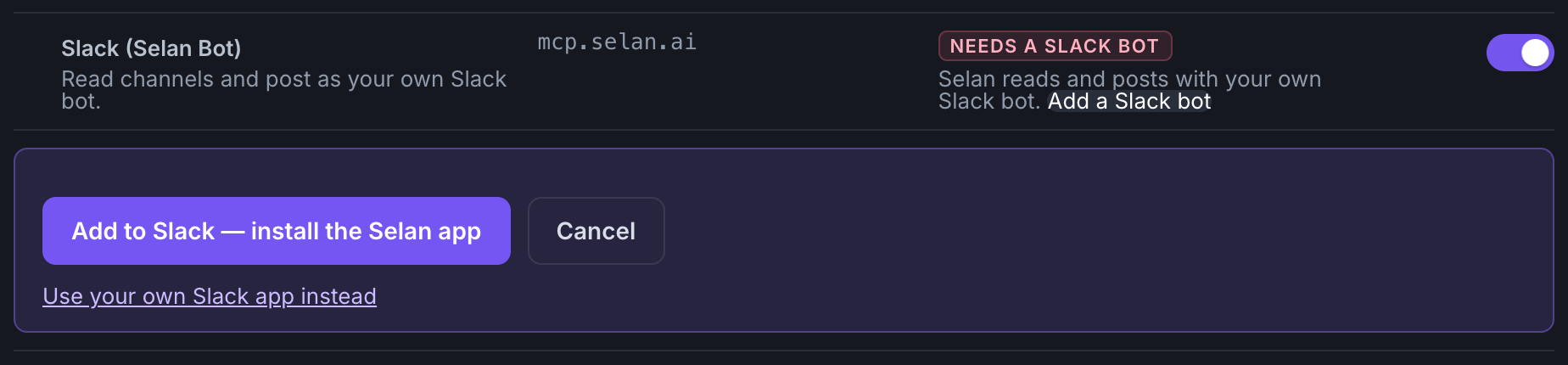
Each agent posts under its own name, and every post ends with a footer line that names who asked and links the run. Reply in the thread and the agent picks the conversation up where it left off.
The bot works only in channels it has been invited to, Slack Connect channels included, and an agent can edit or delete only its own posts. Disconnecting in Selan, or uninstalling the app in Slack, revokes the token and deletes what Selan holds.
Slack Personal: your own Slack in Claude
Slack Personal is Slack's own MCP server, in Claude Desktop and Claude Code. Each developer signs in to Slack as themselves, so Claude searches their messages, reads the channels, DMs and canvases they can see, and posts, reacts and writes canvases as them. Their own Slack permissions apply, and Selan never holds their account.
Slack signs people in to its MCP server only through a Slack app of your company's own, so an owner creates one once: an internal app with MCP server access turned on, the scopes and redirect addresses the docs list, and its Client ID and Client Secret saved under Connections, Slack Personal.
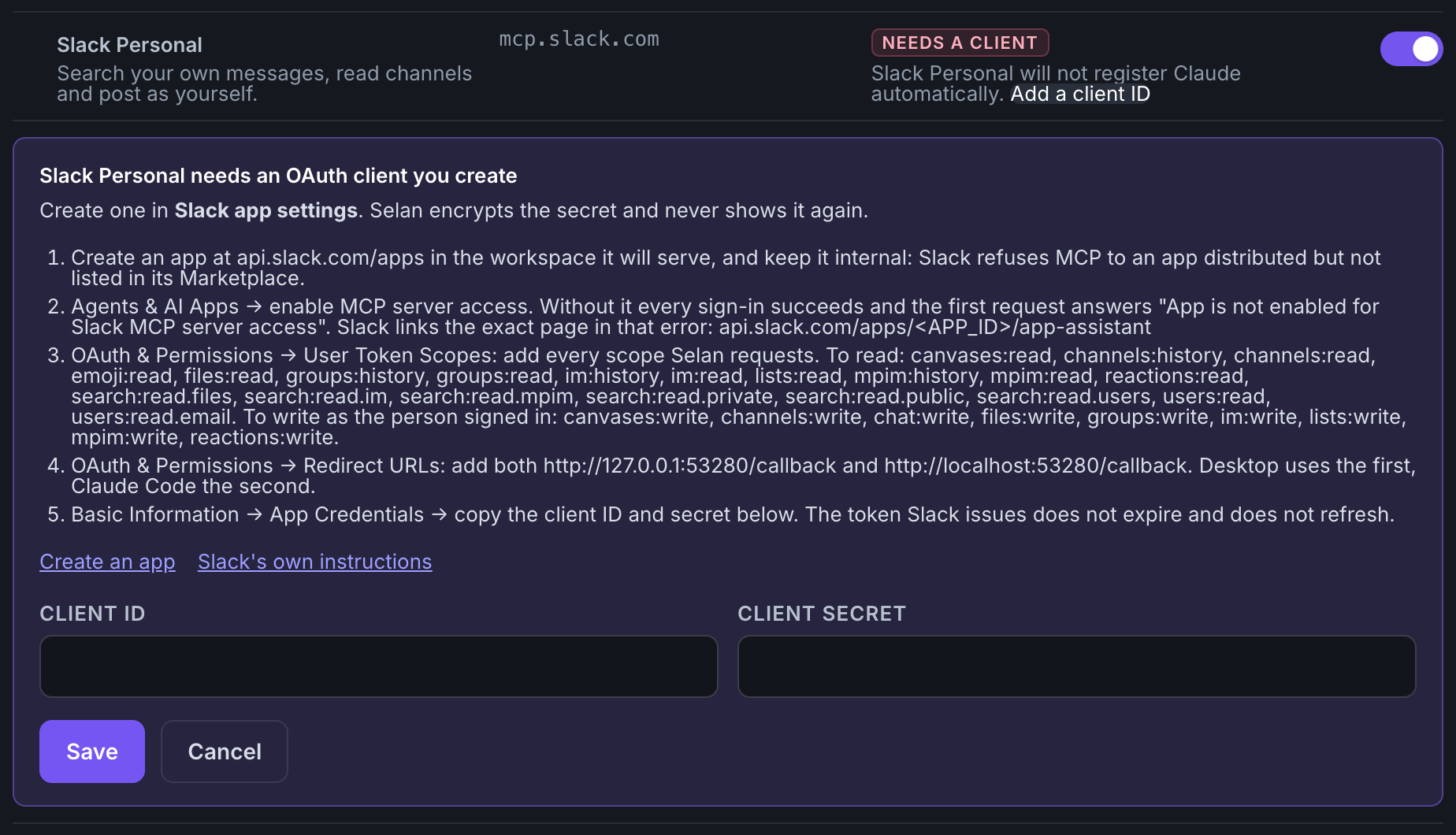
Each developer then turns Slack Personal on for Claude Desktop, the CLI or both on their own Connections page, and signs in the first time they use it.
Which one to use
Use the bot when an agent should report to a channel and take replies there: deploy checks, log watchers, release notes. Use Slack Personal when you want your own Claude to find a thread, catch up on a channel or draft a reply as you. A company can switch on both.